

















🔧
PipesHub Toolsets
Give your AI agents the ability to interact with external applications
What are Toolsets?
Toolsets are collections of tools that enable AI agents to perform actions in external applications. Each toolset provides a set of actions (tools) that agents can use to read data, create content, and perform operations in connected services. Use Toolsets when you want agents to take action on data — sending emails, creating tickets, updating documents, or modifying content in external services. Key characteristics:- Two-way API access - Read and write data in real-time
- Action-oriented - Send emails, create tickets, update documents
- OAuth callback URL required - Secure authorization flow
- Instant execution - Actions happen immediately when agents invoke tools
Need to search or query through documents or emails? You need Connectors instead. Connectors index data for knowledge retrieval, while Toolsets enable actions.
When you want to use both Connector and Toolset: In the Agent Builder add nodes from Knowledge (Collections, API Apps) for document search and context retrieval, and add nodes from Tools for performing actions. Connect both to your Agent Core so the agent can search context and take action in the same conversation.
| Feature | Connectors | Toolsets |
|---|---|---|
| Purpose | Sync and index data for search | Perform actions via API |
| Data Flow | One-way (import) | Two-way (read/write) |
| Use Case | Query/search data | Actions on data |
| Real-time | Periodic sync | Instant API calls |
Available Toolsets
Google Workspace
Atlassian
| Toolset | Description | Auth Type |
|---|---|---|
| Jira | Issue tracking and project management | OAuth 2.0 |
| Confluence | Wiki and documentation | OAuth 2.0 |
Slack
| Toolset | Description | Auth Type |
|---|---|---|
| Slack | Team messaging and collaboration | OAuth 2.0 |
Configuring Toolsets
Step 1: Navigate to Toolsets Settings
- Click on your Connector Settings in the navigation
- Go to Settings in the sidebar
- Click Toolsets
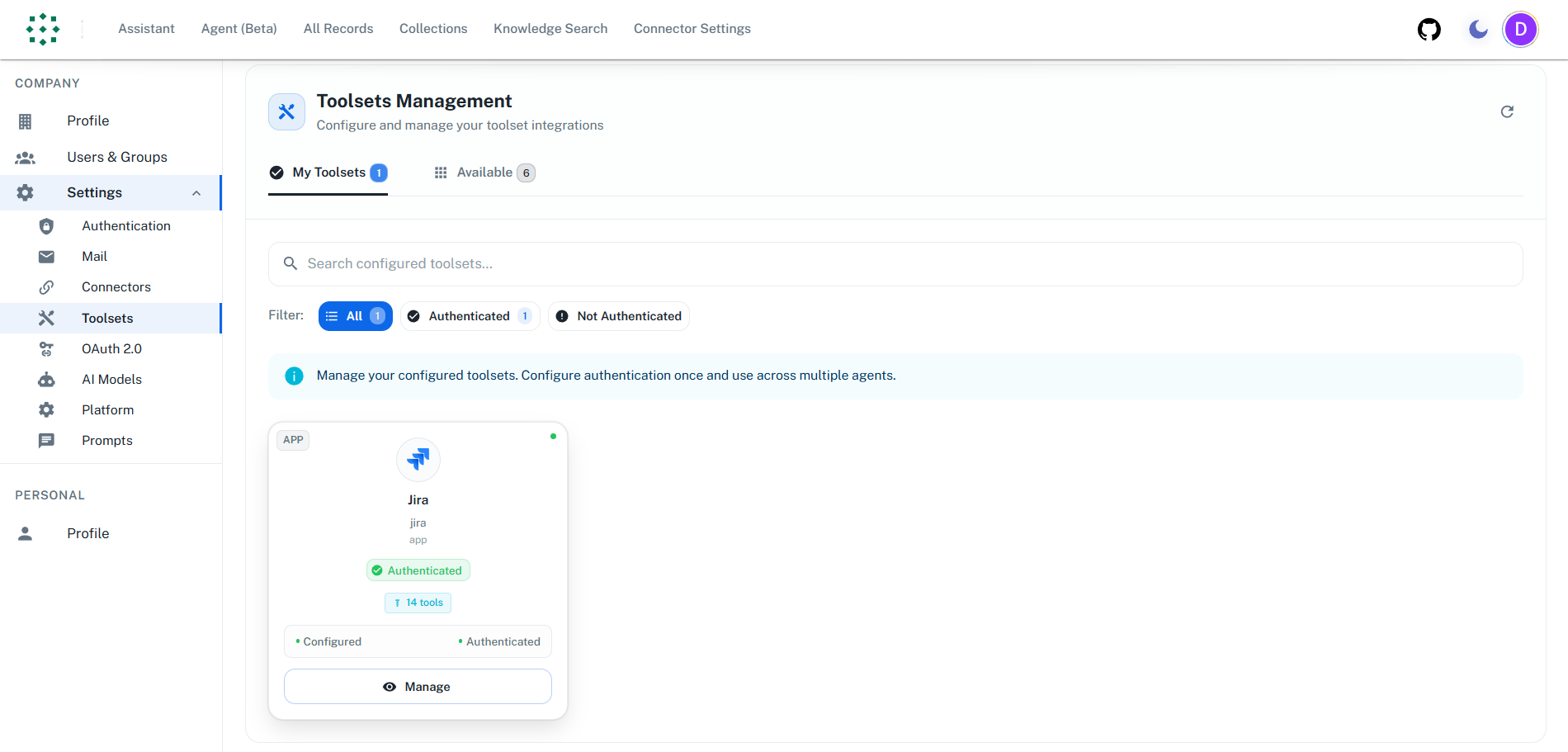
Step 2: Browse Available Toolsets
The Toolsets page has two tabs:- My Toolsets - Toolsets you’ve already configured
- Available - All available toolsets ready to configure
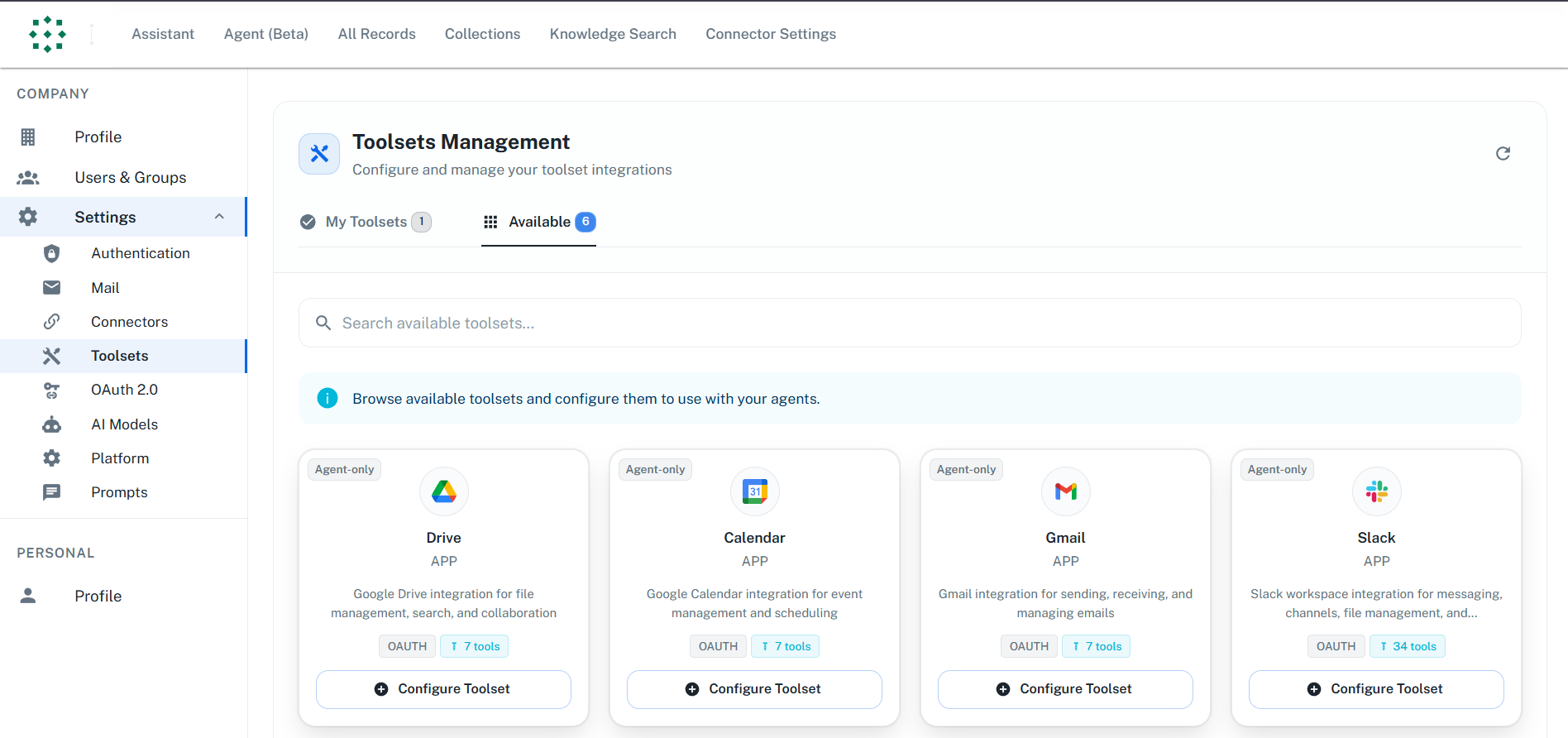
Step 3: Configure a Toolset
- Find the toolset you want to configure in the Available tab
- Click the “Configure” button on the toolset card
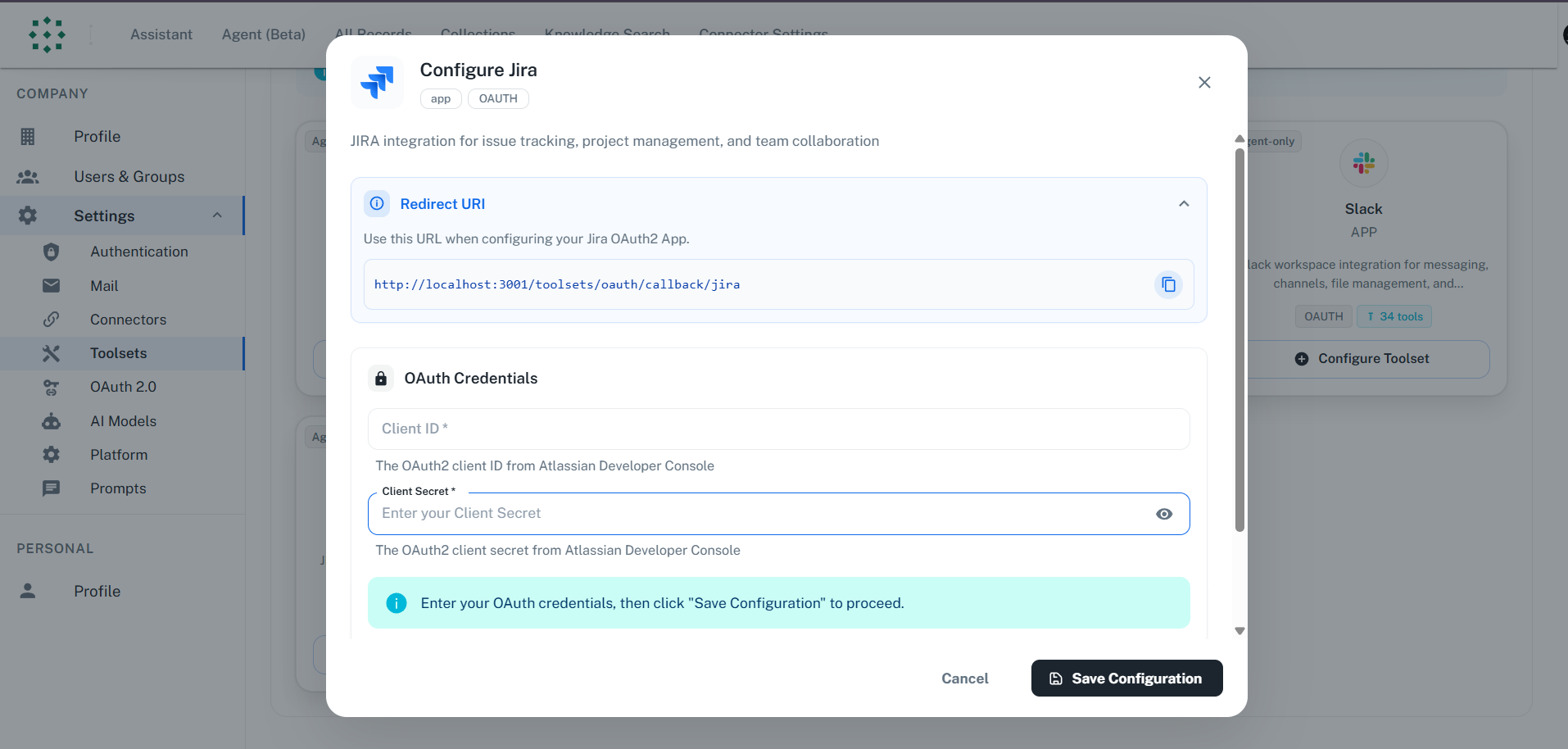
- The Configuration Dialog will open
Step 4: Authenticate
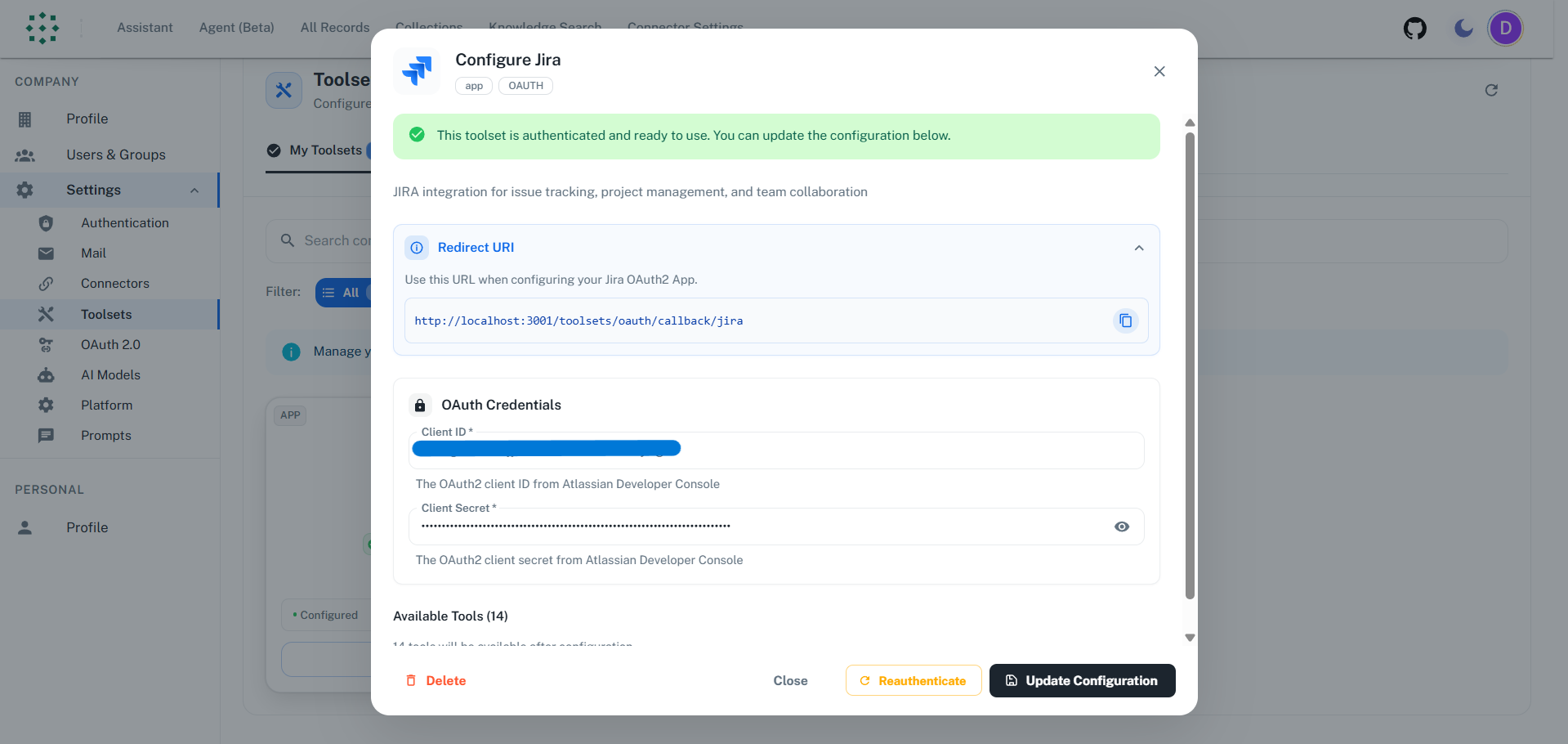
Follow the authentication flow for the toolset:- Enter the required credentials in the configuration dialog (e.g., Client ID and Client Secret)
- Click “Authenticate”
- If prompted, a popup window will open for authorization
- Grant the requested permissions
- You’ll be redirected back to PipesHub with authentication confirmed
Each toolset may have different authentication requirements. See individual toolset documentation for specific setup steps and credentials needed.
Step 5: Verify Configuration
Once configured, the toolset will appear in your My Toolsets tab with an “Authenticated” status.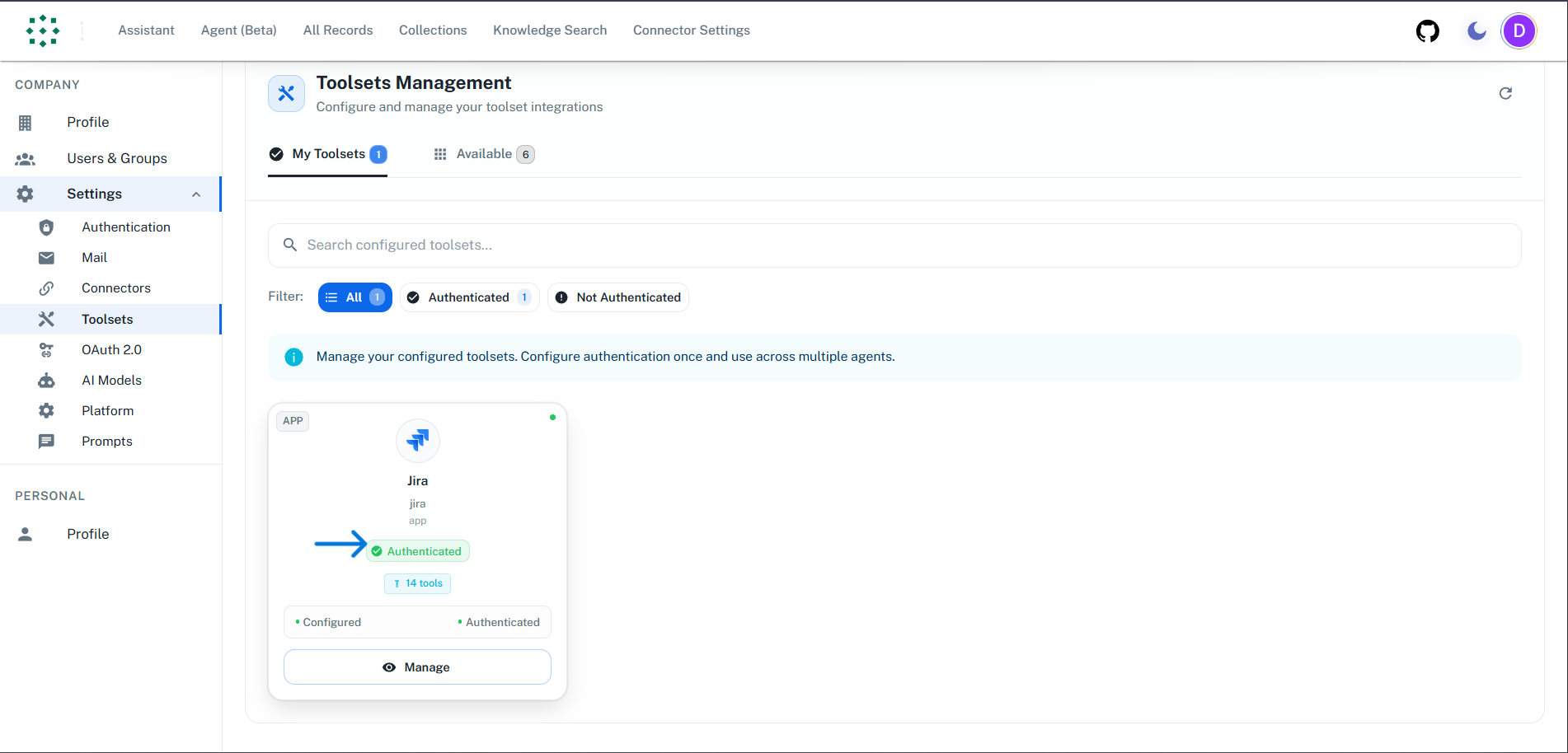
Managing Toolset Configuration
You can manage your toolset by clicking on it in the My Toolsets tab to open the configuration dialog. Available actions:- Update Configuration - Modify credentials or settings
- Reauthenticate - Refresh authentication if it expires or encounters issues
- Delete - Remove the toolset configuration entirely
Using Toolsets in Agents
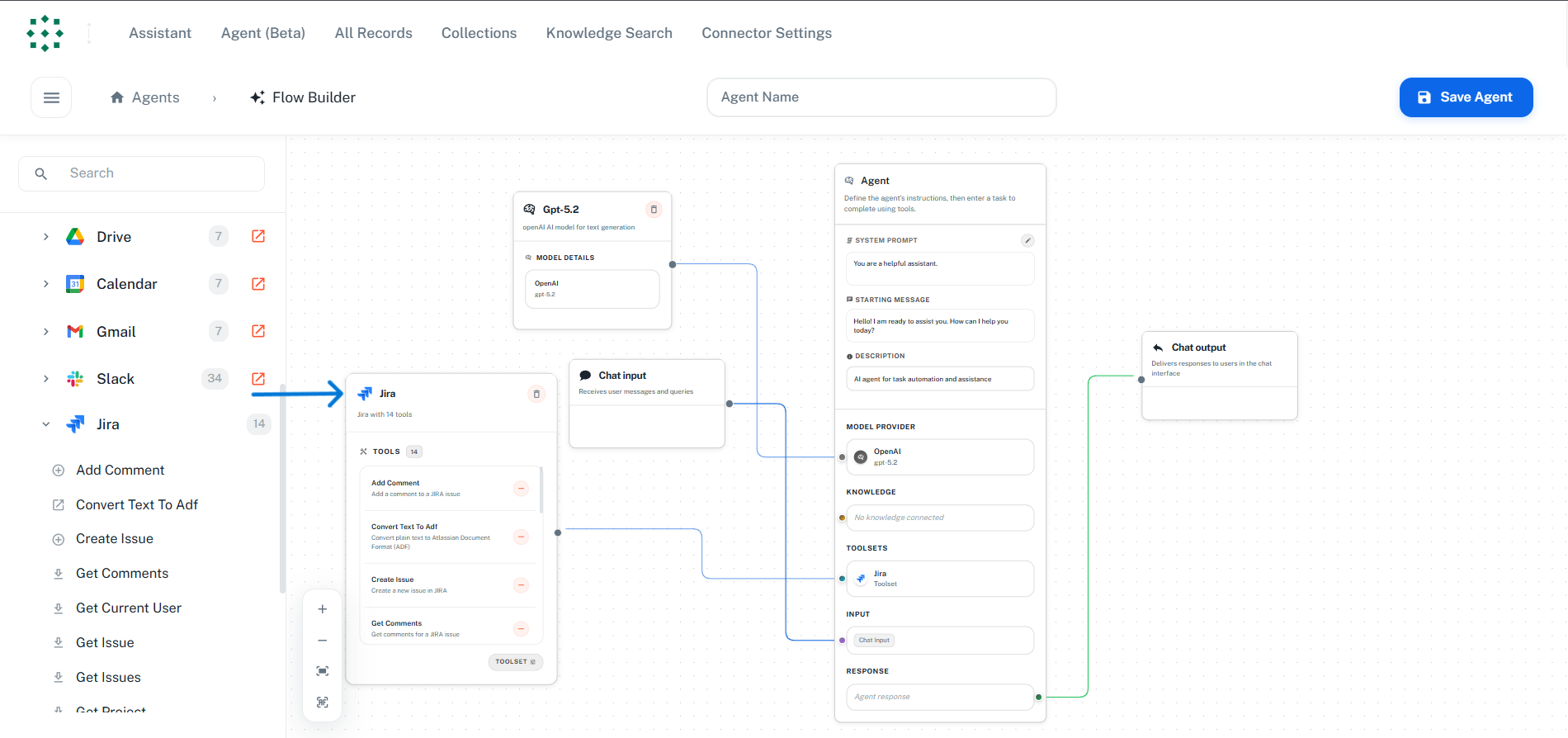
Once a toolset is configured, it becomes available in the Agent Builder:- Open the Agent Builder (create new or edit existing agent)
- In the left sidebar, expand the “Tools” section
- Find your configured toolset and drag it onto the canvas
- Connect it to your agent flow
Authentication Types
OAuth 2.0
OAuth 2.0 is the recommended authentication method for most toolsets. It provides:- Secure token-based access - No passwords stored
- Automatic token refresh - Tokens are refreshed automatically
- Granular permissions - Only request necessary scopes
- User authorization - Users explicitly grant access
- Create an OAuth application in the service’s developer console
- Configure redirect URI (provided by PipesHub)
- Obtain Client ID and Client Secret
Frequently Asked Questions
What's the difference between Connectors and Toolsets?
What's the difference between Connectors and Toolsets?
| Aspect | Connectors | Toolsets |
|---|---|---|
| Purpose | Sync and index data for search | Enable agents to perform actions |
| Data Flow | One-way (import data into PipesHub) | Two-way (read and write via API) |
| When to Use | Query/search data | Perform actions on data |
When should I use a Connector vs a Toolset?
When should I use a Connector vs a Toolset?
Connector — Use when you need document context search: connectors sync and index your documents, emails, and pages so your assistant can find and use that context, and they do not perform actions.Toolset — When you need actions: create or update content, send messages, or run analytical queries (e.g. JQL, CQL, reports).Quick takeaway: Search & context → Connector. Actions → Toolset.
Where do I find the callback URL to add in the OAuth app?
Where do I find the callback URL to add in the OAuth app?
The callback URL is displayed in PipesHub when configuring a toolset:
- Go to Settings > Toolsets
- Click “Configure” on the toolset you want to set up
- Copy the Redirect URI shown in the dialog
- Add it to your OAuth app’s allowed redirect URIs in the service’s developer console
What OAuth scopes do Toolsets require?
What OAuth scopes do Toolsets require?
Toolsets need read, write and delete permissions to perform actions on your behalf:
- Read permissions - Access existing data (messages, tickets, files)
- Write permissions - Create and update content (send emails, create tickets)
- Delete permissions - Remove items (delete messages, delete comment)
Why can't I drag and use a Toolset in Agent Builder?
Why can't I drag and use a Toolset in Agent Builder?
Toolsets appear in the Agent Builder but can only be used after authentication:
- Check Settings > Toolsets for the authentication status
- If not “Authenticated”, click “Configure” and complete the OAuth flow
- If expired, click “Reauthenticate”
- Return to Agent Builder and the toolset will be available to drag and connect